

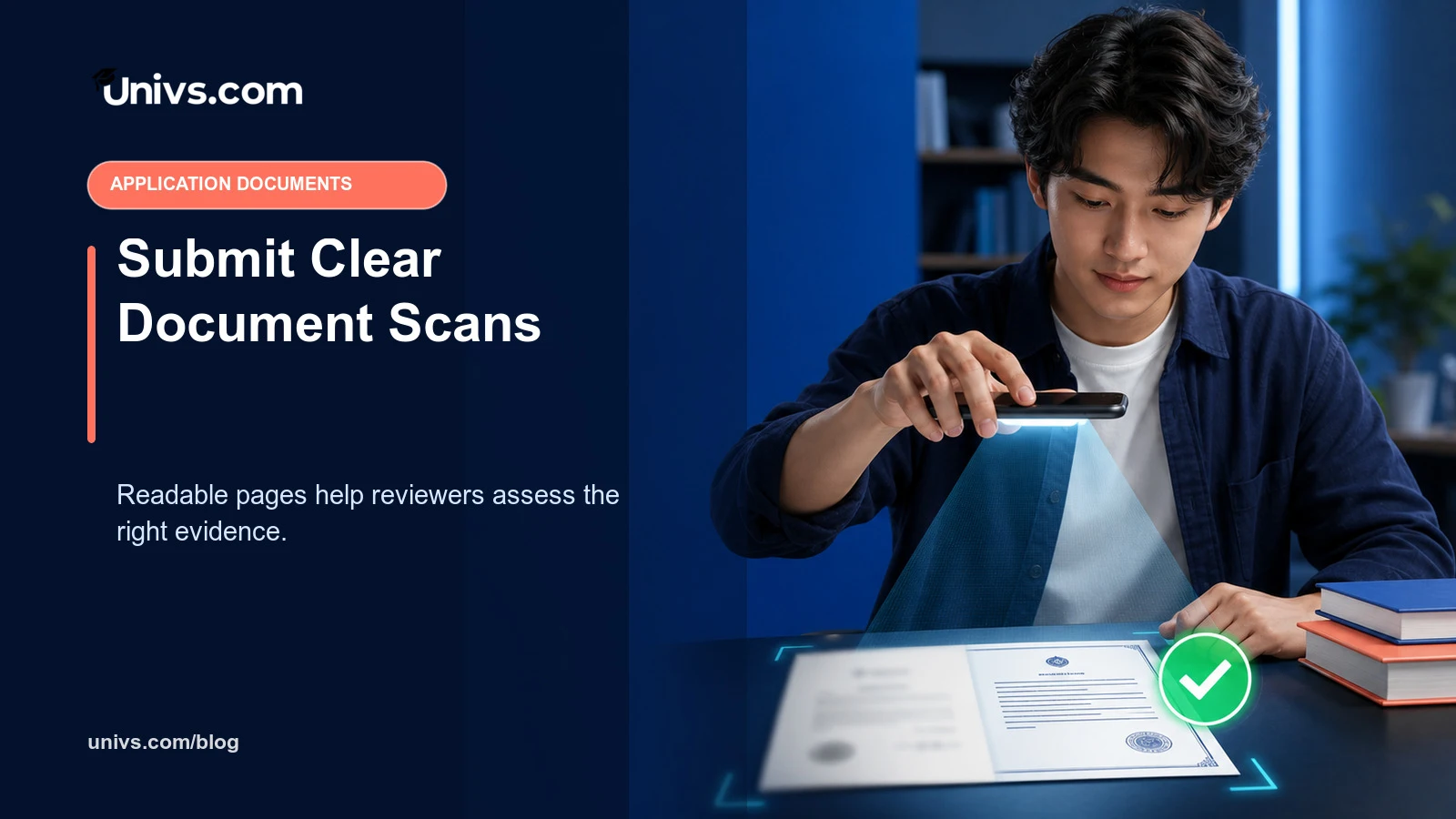
A document scan is useful only when a reviewer can see the same information that appears on the original. A blurred, cropped or over-compressed image can turn a genuine document into an incomplete application item. The goal is faithful reproduction, not a polished redesign.
Always follow the destination’s current file-type and size instructions. One institution may request JPG files; another may prefer a combined PDF. Do not convert files mechanically without opening and checking the result.
Start with the best available original
Use the official paper or the original digital document from the issuer. Avoid scanning a screenshot of a screenshot, a messaging-app preview or a heavily compressed copy. If only a poor copy exists, ask whether the issuing authority can provide a replacement rather than trying to sharpen missing detail.
Capture the whole page
Keep all four edges visible unless the instruction explicitly says otherwise. Include stamps, signatures, page numbers, reverse-side notes and grading keys. Automatic phone scanners can trim corners too aggressively, so inspect the crop before saving.
Control light, glare and shadows
Place the document flat in even light. Remove plastic sleeves that create reflections. Hold the camera directly above the page and keep hands away from text and seals. A bright white page is not helpful if a reflective area hides the passport number or grade.
Use enough resolution without creating an enormous file
Small text and security details should remain readable at normal zoom. After scanning, open the final file on a laptop and a phone. If the upload limit requires compression, reduce carefully and check again. Never trade legibility for a smaller file without asking about an alternative upload route.
Choose colour when colour carries evidence
Colour can distinguish stamps, seals, annotations or original formatting. Use greyscale only when accepted and when it does not remove useful information. Do not change contrast so strongly that faint writing disappears or a copy begins to look altered.
Keep pages in the official order
For a multi-page record, preserve the page sequence and include blank reverse sides only when they contain an official feature or the instructions require them. Name the file for the document type, not with vague labels such as “scan1-final-new”. Avoid personal identifiers in filenames.
PDF and image files need different checks
A PDF can combine pages and preserve order, while JPG may be required for a passport or photograph. Confirm that converted pages have the correct orientation and no added password. The institution must be able to open the file without requesting access to a private cloud account.
Do not beautify an official document
Do not remove backgrounds, repair stamps, replace signatures, move text or delete marks. Basic rotation and faithful cropping are different from editing the record. If the original is damaged or contains an official error, explain it and request guidance.
Use secure storage and transfer
Keep originals in a protected folder and avoid public share links. Upload through the verified route. When Univs is used, follow the student portal guide so that the correct file stays attached to the correct record.
Inspect the uploaded result
A successful progress bar proves that bytes were sent, not that the right file was attached or readable. Reopen the item where the platform allows it, confirm the title and page count, and save the submission confirmation. If replacement is needed, use the controlled replacement process rather than adding duplicates.
Test the file on another screen
Open the finished scan on a laptop and a phone-sized screen without using the editing app that created it. Zoom to small dates, grades and stamps. Scroll through every page and check that the file opens without a password or cloud permission request. The Univs student portal guide explains how documents sit within the wider application record; the local viewing test makes sure the uploaded evidence is actually usable.
When to rescan instead of compress
If the page is blurred, reflective or badly cropped, start again from the original. Compression cannot recreate missing detail. If the only original is damaged, preserve it faithfully and ask the admissions team what supporting explanation or replacement it accepts. Do not use artificial sharpening, generative tools or copied seals to make a poor document appear official. A truthful imperfect record plus an authorised explanation is safer than a visually convincing alteration.
Scan-quality checklist
- Correct original and every required page.
- Straight orientation with all edges visible.
- No glare, shadow, blur or hidden information.
- Accepted format, size and filename.
- Final file opened and checked before upload.
Questions to ask before using a different format
If the requested format exceeds the portal limit or cannot preserve every page clearly, ask whether separate files, a larger PDF or another official route is accepted. State the current file size and page count. Do not email a public cloud link or remove pages without approval. Save the answer with the application and review how Univs supports the application journey so the reviewer can understand why the submitted format differs from the general instruction.
Quality supports speed, not admission
A clear scan can prevent avoidable questions, but it cannot replace a missing qualification, certification or translation. Use the current application process guide for the wider sequence and recheck every requirement before submission.
Editorial note
Requirements can change and may differ by institution, programme and applicant. Recheck current university and government guidance before paying or travelling.
For comparisons, we assess the stated student brief, current route availability, discovery breadth, application ownership, progress visibility, support, costs and duplicate-application risk. Univs publishes this page and may have commercial relationships with institutions; those relationships do not determine admission decisions. Read our editorial standards.