

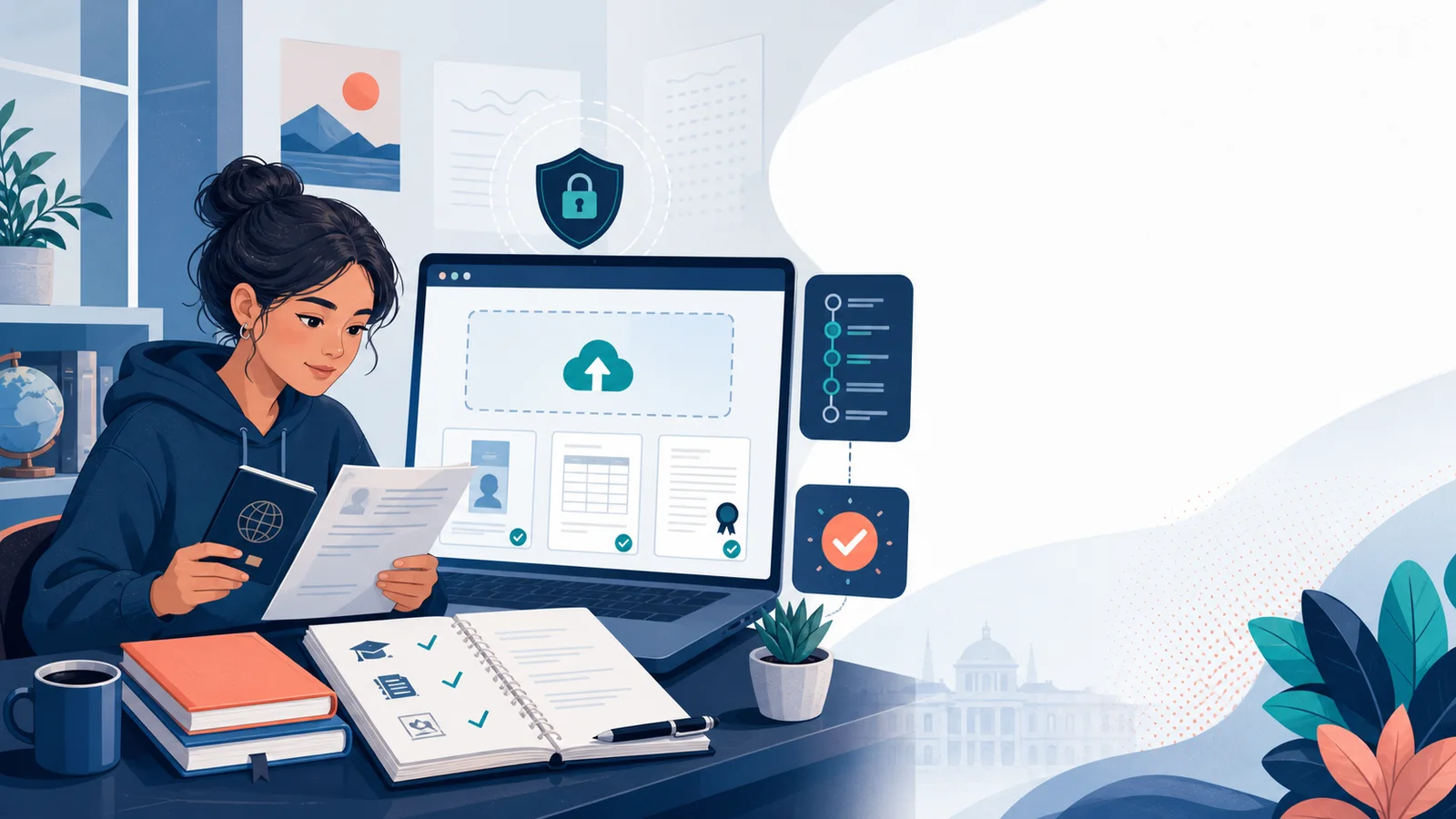
University applications can involve passports, academic records, language results and programme-specific evidence. The safest practical approach is to upload only the requested file through the authenticated Univs workflow, keep your own copy and check that the document is attached to the correct student or application record.
This guide explains preparation, upload, replacement and privacy habits without suggesting that one document checklist applies to every university.
Where should application documents be uploaded?
Use the document area inside your signed-in Univs student portal or the requested-document control shown on the relevant application. A signed-out visitor is redirected to login because the workflow belongs to an identified account.
Do not post passports, transcripts or financial records in a public review, social-media comment or ordinary public contact form. If you are unsure which upload control to use, ask through the application or support route before sending the file elsewhere.
Which documents might be requested?
The current portal supports common academic records, language evidence, passport material, statements, recommendations, experience documents and additional items configured for a particular application. The exact requirement depends on the university, programme, level, intake and applicant background.
A generic checklist is only preparation guidance. The request attached to your own application is the operative instruction.
How should you prepare a scan?
Include the complete page, keep every corner visible and use enough resolution for names, dates, stamps and grades to be read. Avoid shadows, fingers, glare, aggressive filters and compression that blurs small text.
Keep the document in its original orientation. Combine pages only when the upload instruction permits it, and check the final file from beginning to end before submitting.
Which file types and sizes are accepted?
Accepted types vary by document control. Current primary academic uploads commonly accept PDF, JPEG or JPG, while some written documents use office-document formats. Additional requests can have their own permitted types, file counts and expiry-date rules.
The portal displays the relevant size limit. If a file is rejected, reduce it carefully without making the text unreadable; do not rename a file extension to disguise an unsupported format.
How should files be named?
Use a short, useful name such as “Surname-passport” or “Bachelor-transcript”. Avoid unnecessary passport numbers, birth dates or account credentials in filenames. A filename helps you organise your copy but does not replace selecting the correct document type in the portal.
Store a local folder with the final uploaded version and the date. That makes it easier to answer a later clarification without guessing which file was sent.
What happens when a document changes?
The current student workflow can support replacing a primary document or uploading a new version. A replacement becomes the active file, while a new version may remain pending until it is reviewed. Student-side deletion is deliberately restricted in current routes; the interface directs students to replace or upload a new version instead.
Use replacement for a corrected current document and new version when the workflow calls for preserving the earlier file. If the distinction is unclear, ask before uploading duplicates.
How do requested documents differ?
A requested-document upload is tied to a specific application need. It may have a defined title, allowed format, file count or expiry date. Upload against that request so the reviewing team can see what requirement the file is intended to satisfy.
Do not upload an unrelated document merely to remove a request from view. An incorrect file can delay review and create extra clarification work.
How do you protect private information?
Sign in by typing the known app.univs.com address, use a unique password and protect the email account linked to it. Sign out on shared devices and do not save documents in a public downloads folder or shared browser profile.
Never send passwords, one-time codes, payment-card PINs or unrelated family documents. The Univs student portal guide explains why public discovery and account-protected application work are separated.
How do you check that the upload worked?
Wait for the portal’s success response, then reopen the relevant document or application area. Confirm the correct document type, current version or pending state and application context. Keep a dated screenshot or note for your own records, without publishing it.
An uploaded file is not automatically an accepted file. It may still require a readability, completeness or validity check.
What if the portal rejects the file?
Read the displayed error and check format, size, file count and required fields. Try a fresh export from the original rather than repeatedly compressing a damaged scan. If the issue continues, create a concise support ticket with the document category and error wording.
Do not attach the confidential document to a general ticket unless an authorised response specifically asks for it. A privacy-safe screenshot of the error is often enough for initial diagnosis. Open the authenticated support ticket area directly if you need technical help.
Common mistakes to avoid
- Uploading only the first page of a multi-page record.
- Selecting the wrong document category.
- Using a blurry screenshot instead of a clean scan.
- Sending the same file through several unrelated channels.
- Replacing a valid file without checking what the new version changes.
- Assuming upload means university approval.
Final document checklist
- Read the requirement attached to your application.
- Scan every page clearly and in the correct orientation.
- Check type, size, file count and expiry rules.
- Remove unnecessary private details from filenames.
- Upload through the correct authenticated control.
- Reopen the record and confirm its status.
- Keep your own dated copy.
Workflow details were checked against the current Univs portal code and routes on 1 August 2026. Available controls can vary by document category, application and account state.
Related Univs resources
Editorial note
Requirements can change and may differ by institution, programme and applicant. Recheck current university and government guidance before paying or travelling.
For comparisons, we assess the stated student brief, current route availability, discovery breadth, application ownership, progress visibility, support, costs and duplicate-application risk. Univs publishes this page and may have commercial relationships with institutions; those relationships do not determine admission decisions. Read our editorial standards.